SINGLE SIGN-ON

Sign in with your identity provider

The Legislation Update Service now supports single sign-on (SSO), so your team can sign in using your organisation’s own identity provider. This page is a short overview for your IT team of what we support and the setup process.

What we support

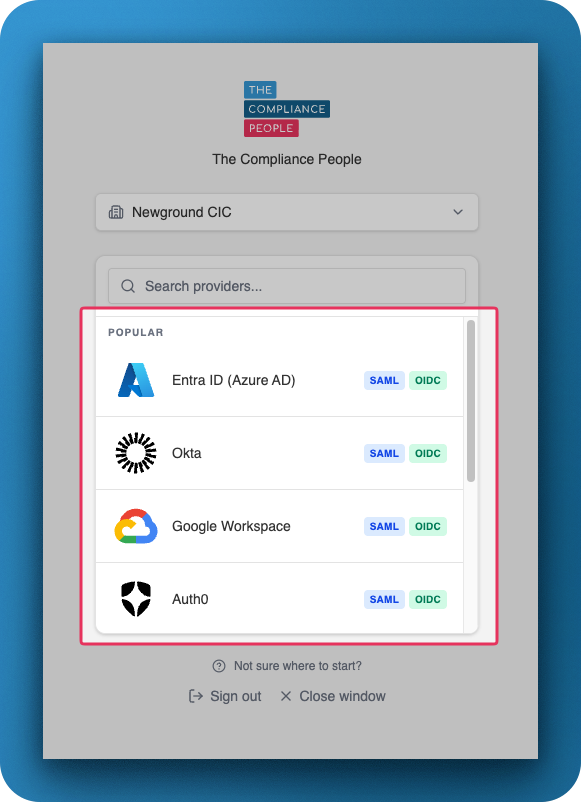
We support almost any SSO provider through OIDC (OpenID Connect) or SAML 2.0. That includes Microsoft Entra ID, Okta, Google Workspace, Auth0, Cisco Duo and many others.

If your organisation has a preference for one protocol, we’re happy to work with it. If you don’t, we recommend OIDC.

Please note: we do not support Just-in-Time (JIT) provisioning or SCIM provisioning at this time. Adding and removing users, and changing their permission levels, still takes place within the Legislation Update Service.

We also do not support IdP-initiated login at this time. We can, however, provide a URL that redirects a user straight to your organisation’s IdP, so they skip the initial email-entry page in the Legislation Update Service.

The setup process

The steps below use Microsoft Entra ID as a worked example; the same principles apply to other providers. We’ll guide your team through each step.

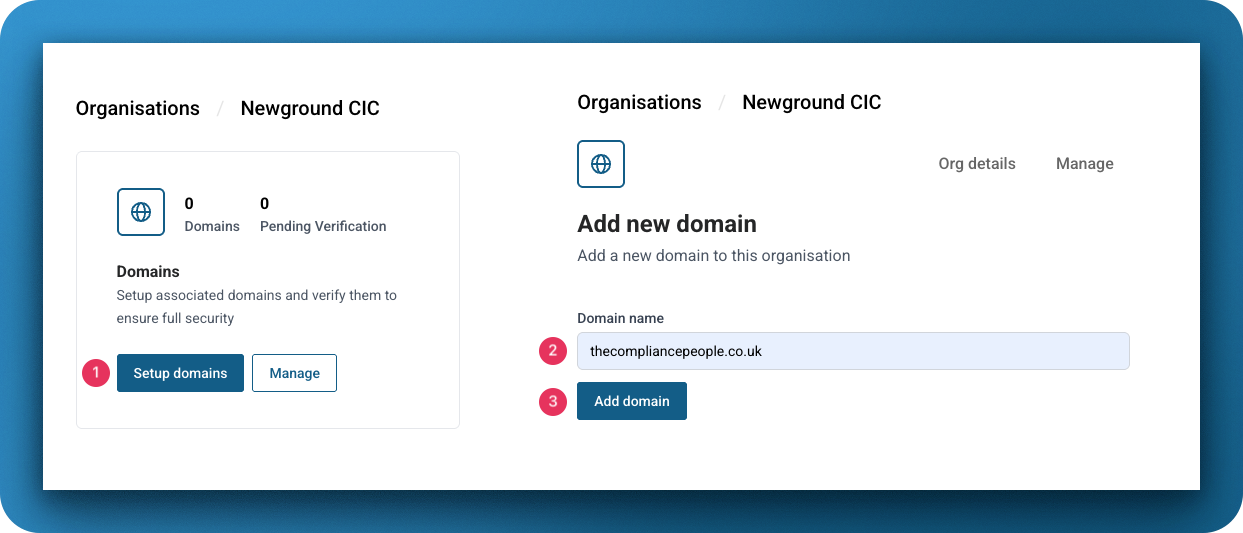
First we confirm ownership of your organisation’s domain. This is the domain used in your users’ email addresses (the mail attribute in Entra ID) — not your UPN domain, where the two differ.

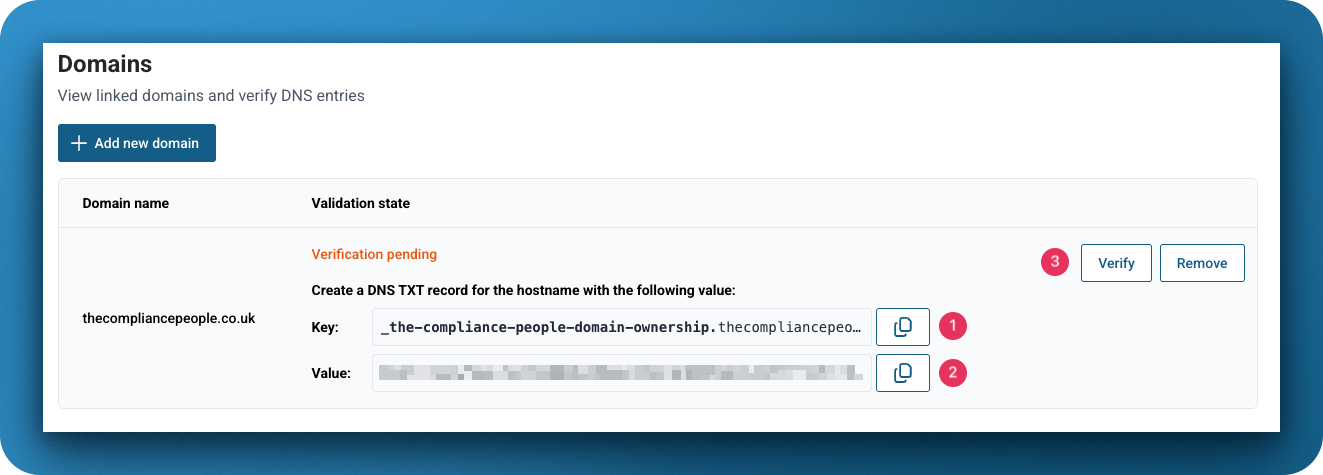
We’ll supply a TXT record to add to that domain’s DNS. Once it’s visible, the domain is verified.

OIDC: create a new App Registration in Entra ID.
SAML: create a new Enterprise application.

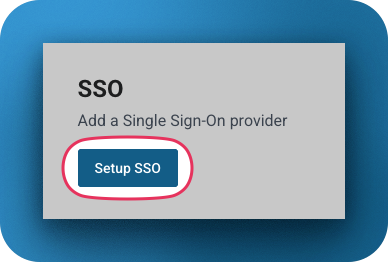
Once your domain is verified, we’ll send you the URLs to add:

  • OIDC: a Redirect URL for the App Registration.
  • SAML: an Identifier (Entity ID) and a Reply URL, added to the Single sign-on configuration of the Enterprise application.

For OIDC, please provide:

  • the OpenID Connect metadata document URL (found in the Endpoints button at the top of the app’s Overview screen);
  • the Application (client) ID; and
  • a client secret, create one and send us its value (not the secret’s ID).

For SAML, provide the App Federation Metadata URL.

Set the client secret with an appropriate expiry, and keep a process for spotting secrets nearing expiry so you can send us a new value before it lapses. If a secret expires, SSO will stop working.

SAML only. Set the attributes & claims to match the format below:
Claim name Value
givenname user.givenname
surname user.surname
name user.userprincipalname
emailaddress user.mail
Unique User Identifier user.userprincipalname

Grant access in Entra ID in one of two ways:

  • set Assignment required? to No in the Enterprise application’s properties; or
  • assign the specific users and groups permitted to use the application.

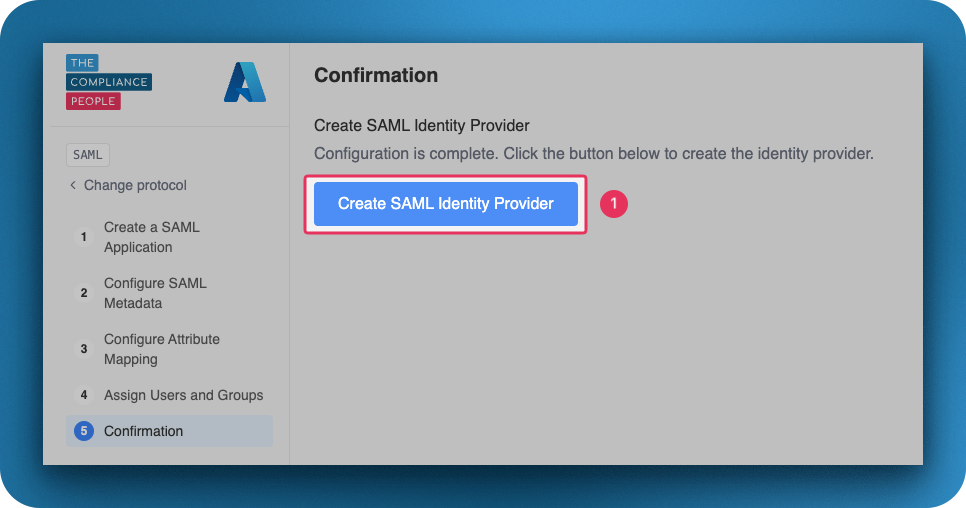
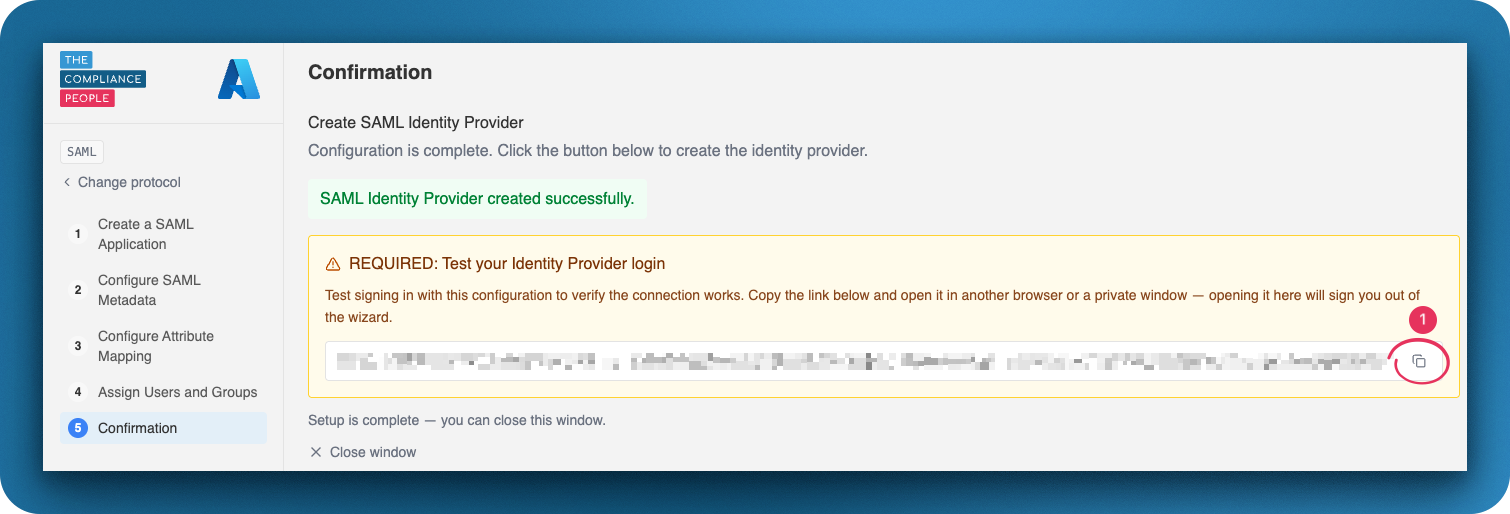
Finally, we’ll provide a one-off login validation URL. An existing Legislation Update Service user signs in through it to confirm the connection works. Once validated, we enable SSO for your organisation.

Ready to get started?

Get in touch and we’ll begin the setup with your IT team.